
How to Schedule Instagram Posts: A Comprehensive Guide
Discover the complete guide to scheduling Instagram posts in 2025. From Instagram's native scheduling feature to Meta Business Suite and advanced third-party tools, learn how to maintain a consistent presence, save time, and automate your social media workflow for maximum engagement.
 Enod BataaUpdated August 14, 2025
Ever have that 10 PM moment of panic? “Oh no, I forgot to post on Instagram today!” We’ve all been there. Juggling content creation with, you know, actually running your business is a tough gig. But what if you could set it and forget it? That’s the magic of scheduling your Instagram posts. Scheduled Instagram posts allow you to plan your content in advance, ensuring you never miss a posting opportunity and can better manage your time.
Scheduling isn’t just about avoiding last-minute scrambles. It’s about being strategic. It helps you maintain a consistent presence, post when your audience is most active (even if you’re not), and free up your time for the bigger picture stuff. By scheduling ahead, you can maintain consistent quality in your Instagram feed, which is essential for sustaining engagement and optimizing your reach.
This guide will walk you through exactly how to schedule your Instagram posts, from using the free tools you already have to leveling up with serious automation.
Introduction to Instagram Scheduling
Instagram scheduling is a game-changer for anyone looking to build a strong presence on social media. By planning and scheduling Instagram posts in advance, you can save time, reduce daily stress, and ensure your Instagram feed always looks polished and up-to-date. Whether you’re a social media manager juggling multiple accounts or a business owner trying to maintain a consistent content strategy, scheduling Instagram posts helps you stay ahead of the game.
With the ability to schedule posts directly from the Instagram app or through third party scheduling tools, you have the flexibility to choose the method that best fits your workflow. Scheduling tools allow you to plan your content calendar, keep your Instagram account active even when you’re busy, and maintain a steady stream of engaging content. Plus, these tools often support multiple social media platforms, so you can efficiently manage your presence across Instagram, Facebook, Twitter, and more. No matter if you’re managing a personal account or a business Instagram account, scheduling Instagram posts is a smart way to boost your social media presence and achieve your goals—while saving valuable time for other important tasks.
First Things First: What You’ll Need
There's a couple things that you will need to have setup before you move to scheduling instagram posts.
Instagram Business Account
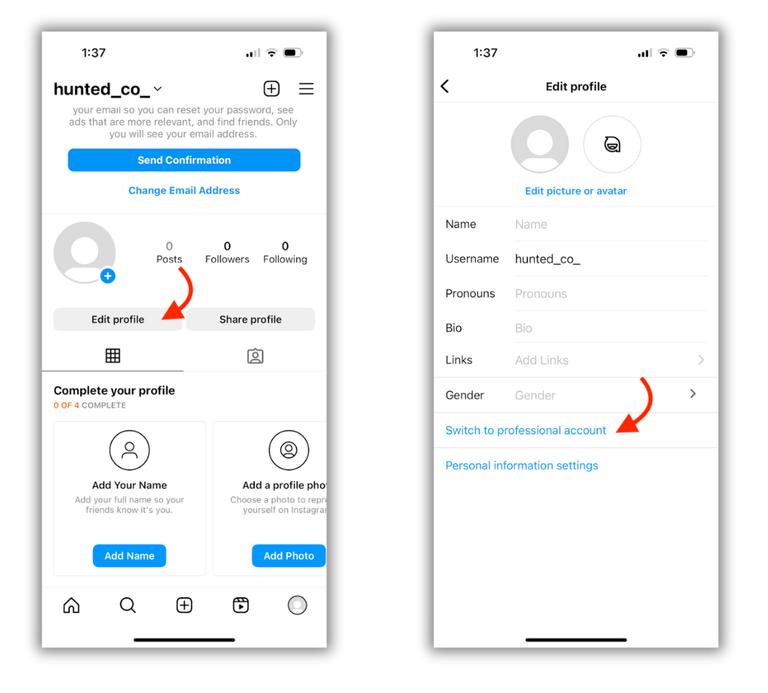
Before you can start scheduling, there’s one small but crucial requirement: you need an Instagram Professional Account. This can be either a Business or a Creator account, personal accounts do not have access to scheduling features. For full scheduling features, you need a business account. An Instagram Business account provides access to advanced scheduling tools and analytics that are essential for effective social media management.
If you’re still using a Personal account, don’t worry. Switching is free and only takes a minute. Just head to your profile, tap on edit profile or tap the three lines in the top-right corner, and find Account types and tools. From there, you can switch to a Professional account and unlock scheduling features.
Content Strategy and Content Calendar
Staying organized is key to a successful Instagram content strategy, and a content calendar is your best friend in this process. With a content calendar, you can plan and schedule your Instagram content—including posts, stories, and reels—well in advance. This ensures your Instagram feed remains consistent and on-brand, and helps you avoid last-minute scrambles.
Many social media management tools offer a drag and drop calendar, making it easy to visualize your posting schedule and make quick adjustments as needed. Instagram’s own content calendar features can also help you keep track of upcoming posts and campaigns. By managing your Instagram content with a content calendar, you’ll save time, reduce stress, and ensure your social media efforts are always organized and effective.
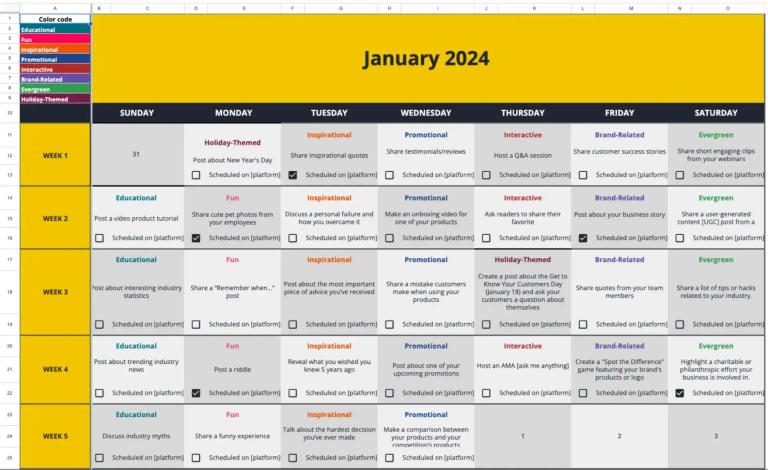
Using a content calendar, you can
-
map out your posts
-
spot any gaps in your schedule
-
plan for key dates like product launches, holidays, or special promotions.
By staying organized and proactive, you’ll keep your Instagram feed fresh and engaging, and your content strategy on track.
How to Schedule Posts Directly in the Instagram App
Instagram finally gave the people what they wanted and added a native scheduling feature. It’s perfect for planning content on the fly. To get started, open Instagram on your device. The process is similar whether you are using the Android app or iOS app. Follow the step-by-step guide below!
Step 1: Create Your Post or Reel
Start by tapping the “+” icon at the bottom of the screen, just like you normally would to create a new post. Select “Post” or “Reel” and choose your photo or video. Go through the usual process of adding filters, edits, and crafting that perfect caption. Writing engaging Instagram captions is essential for capturing your audience's attention and boosting post performance.
You can also tag users in your post to increase engagement and visibility.
Additionally, you can prepare a first comment to go live with your post, which is useful for adding extra information or hashtags without cluttering your main caption.
Step 2: Find the Advanced Settings
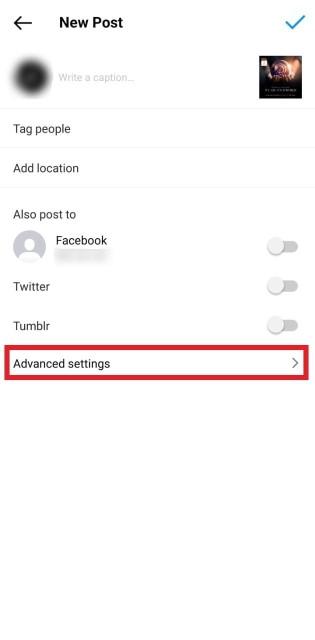
Once your post looks just right, and before you hit that final share button, scroll down to the bottom of the caption screen. You’ll see a line that says “Advanced Settings.” Tap on that.
Step 3: Set Your Schedule
Inside the Advanced Settings menu, you’ll find a “Schedule this post” option. Toggle it on. This will bring up a calendar and a clock. Pick the exact date and time you want your content to go live. When you’re done, tap “Done.”
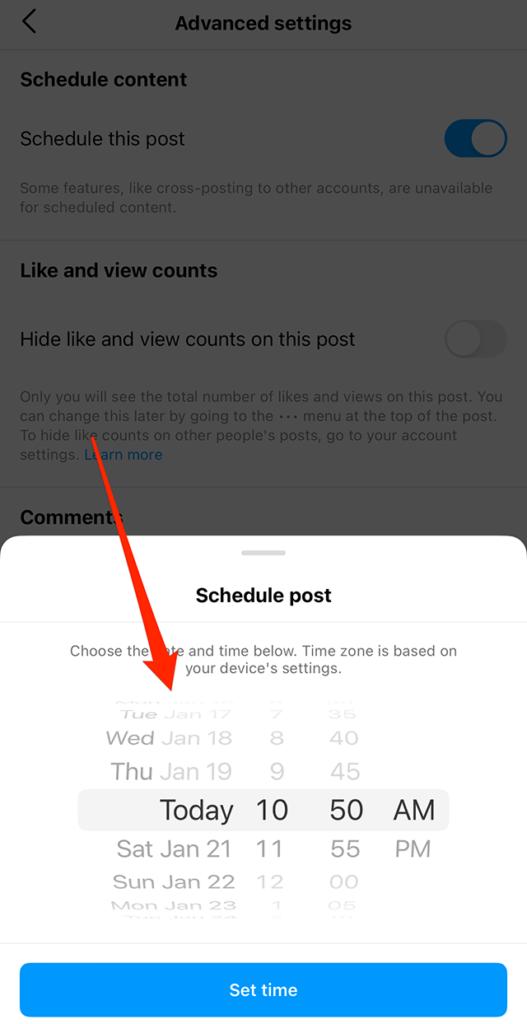
Step 4: Finalize and Schedule
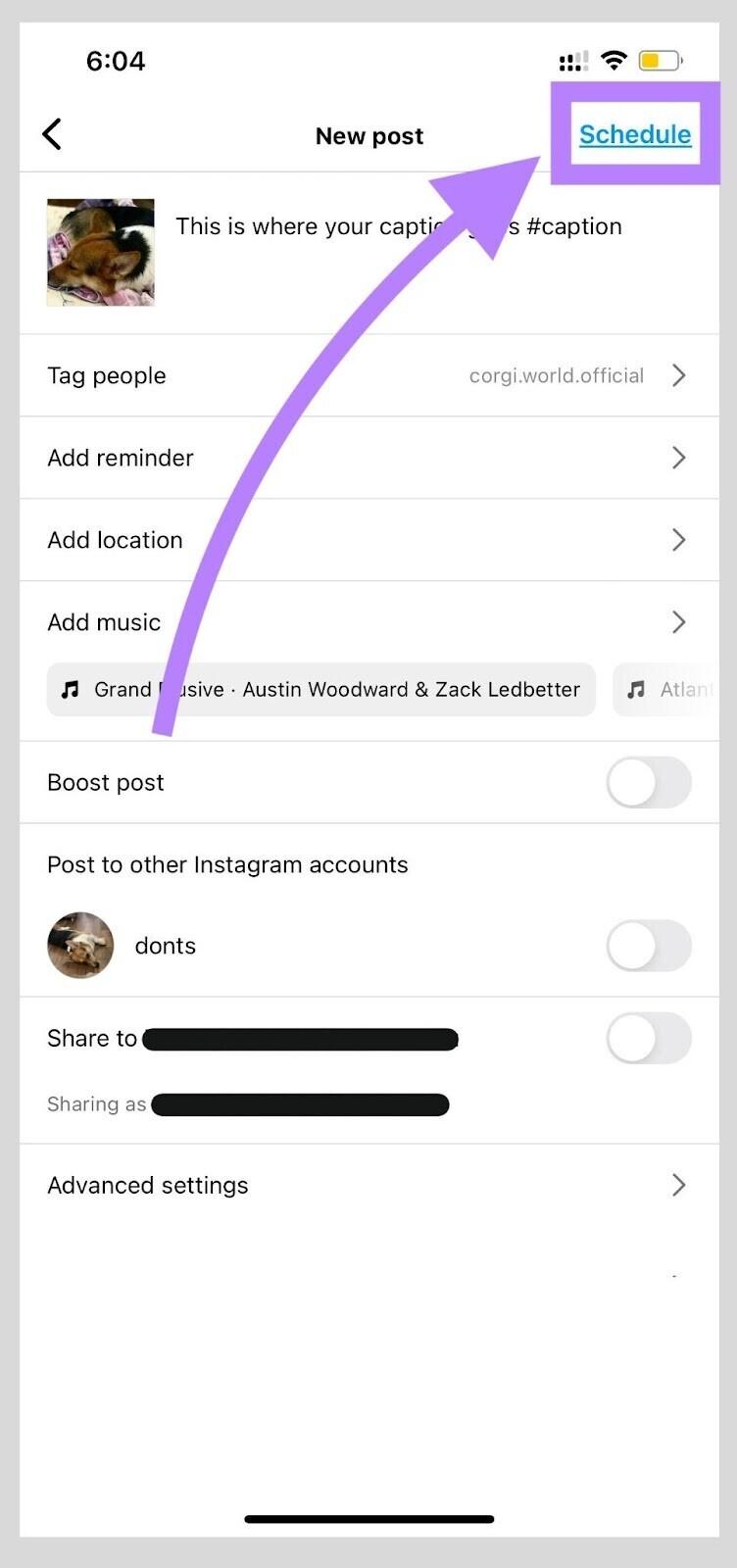
Hit the back button to return to the main post screen. You’ll notice the blue “Share” button has now changed to “Schedule.” Tap it, and you’re all set! Instagram will now automatically publish your post at the time you selected, whether you’re online or not.
Instagram Scheduler Rate Limits
You can schedule posts and Reels up to 75 days in advance, with a limit of 25 posts per day.
How to View and Edit Your Scheduled Posts
Changed your mind? Noticed a typo? No problem. Managing your scheduled content is straightforward.
Simply go to your Instagram profile, tap the three-line menu icon in the top right, and select “Scheduled Content.” Here, you’ll see a list of everything you have queued up. Tap scheduled content to view and manage your upcoming posts or Reels.
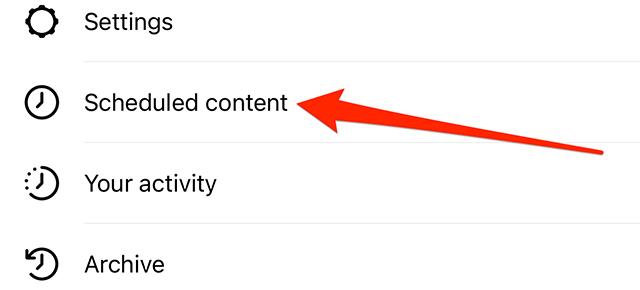
By tapping the three dots next to a post, you can choose to:
-
Reschedule: Pick a new date or time.
-
Edit: Change the caption, tags, location, or edit/add first comments to your scheduled posts for additional engagement.
-
Share Now: Publish it immediately.
-
Delete: Remove it from your queue entirely.
How to Schedule from Your Desktop with Meta Business Suite
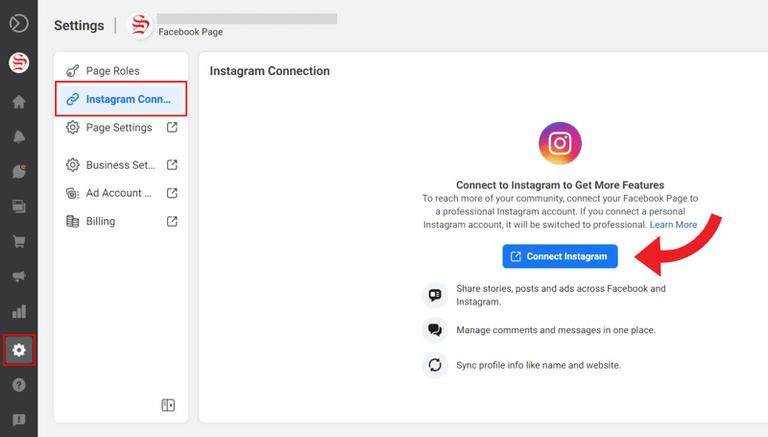
Prefer working on a bigger screen? You can schedule posts, Reels, and even Stories from your computer using Meta Business Suite. This is especially handy for businesses that manage both a Facebook Page and an Instagram account. Meta Business Suite is a social media management tool and social media management platform that allows you to schedule posts on Instagram and other social channels from a single dashboard.
1. Open Meta Business Suite:
Navigate to the Meta Business Suite and click “Create Post” or “Create Reel.”
2. Select Your Account:
Choose the Instagram account you want to post to. You can also select your Facebook Page to post to both platforms at once. Meta Business Suite is especially useful for managing multiple accounts and multiple Instagram profiles, making it ideal for social media managers.
3. Craft Your Content:
Upload your images or videos, write your caption, and add any other details.
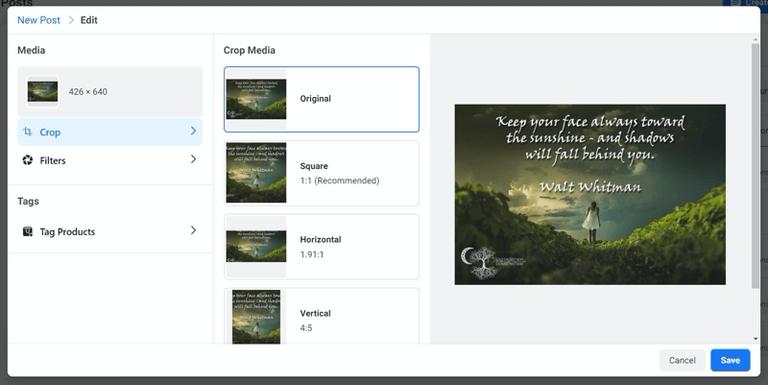
4. Schedule It:
Instead of publishing immediately, look for the “Schedule” option, then click schedule to select your desired date and time. Meta even provides recommended times based on when your audience was most active in the last week.
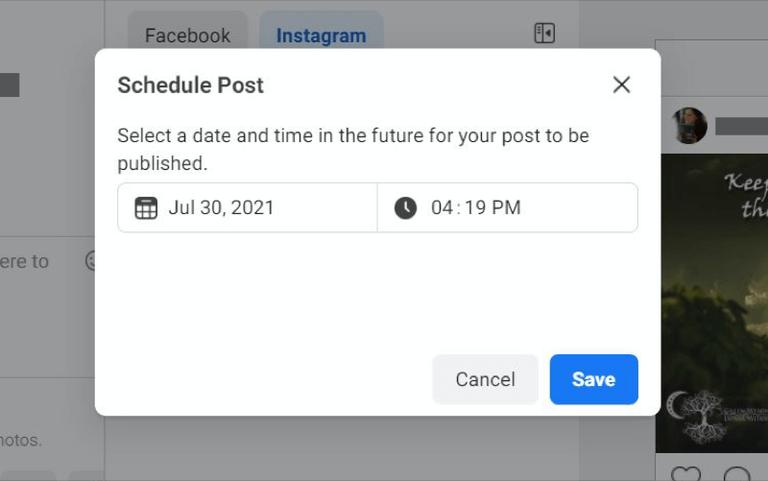
5. Confirm:
Click the “Schedule” button, and your content is officially in the queue. Meta Business Suite and other Instagram scheduling tools and Instagram schedulers help you schedule content and schedule social media posts across multiple platforms.
Level Up: Using Third-Party Scheduling Tools
While Instagram’s built-in scheduler is great for basics, sometimes you need more power. Third-party tools like Buffer, Hootsuite, or Planable are designed for serious social media management. These platforms act as Instagram scheduling tools and Instagram schedulers, helping you automate your posting process and streamline content management.
These platforms often offer advanced features such as:
-
Visual Grid Planners: See how your scheduled posts will look on your profile grid.
-
Bulk Scheduling: Upload and schedule hundreds of posts at once.
-
Advanced Analytics: Get deeper insights into your best-performing content and optimal posting times.
-
Team Collaboration: Allow multiple team members to collaborate on and approve content before it goes live.
-
Social Listening: Monitor brand mentions and online conversations to inform your marketing strategies.
While many of these come with a subscription fee, some, like Buffer, offer a free plan to get you started with scheduling for a few posts. These Instagram scheduling tools can also help you schedule and manage social media posts across different platforms.
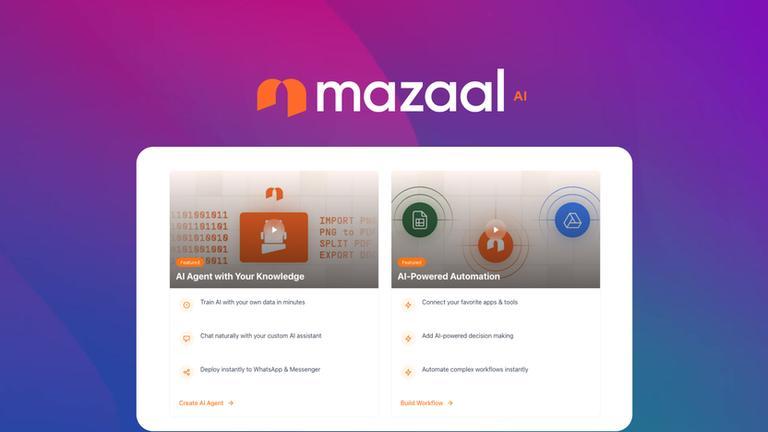
The Ultimate Step: Automating Your Entire Instagram Workflow with Mazaal.ai
Scheduling is about saving time, but what if you could automate the steps that come before you even schedule a post? This is where true workflow automation comes in, moving beyond simple schedulers into intelligent business integration.
Mazaal.ai's AI agents can:
-
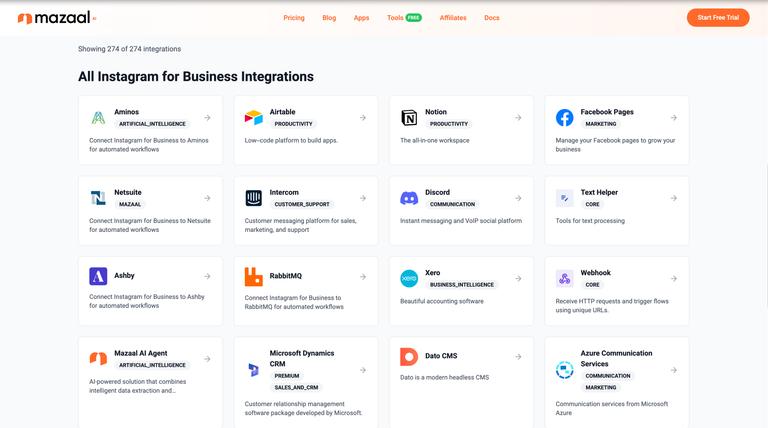
Connect Instagram to any tool: Integrate Instagram with your CRM, e-commerce platform, or even niche industry software that standard schedulers can’t access.
-
Build workflows with plain English: Simply describe what you want to happen—like “When we post a new product on Shopify, schedule an instagram post showcasing the product”—and the AI builds the automation for you.
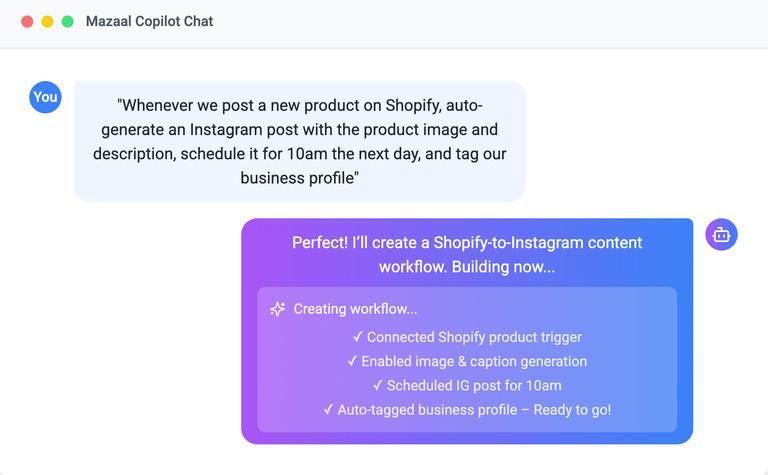
You can literally build any workflow you want with Mazaal. Just to show some examples, here are some of the most popular tool integrations and workflows with instagram that you can build using Mazaal.
-
WordPress+Instagram – Auto-share your latest blog posts directly to Instagram for Business.
-
Webflow+Instagram – Sync new site content with Instagram to keep your audience engaged.
-
Shopify+Instagram – Promote new products on Instagram whenever they go live in your store.
-
Twitter (X)+Instagram – Cross-post Instagram content to X for consistent social presence.
-
Airtable+Instagram – Manage IG post data and automate publishing from a structured database.
-
Notion+Instagram – Plan and auto-schedule Instagram posts from your Notion content calendar.
-
Facebook Pages+Instagram – Share Instagram posts to your Facebook Page automatically.
-
LinkedIn+Instagram – Repurpose Instagram visuals into professional LinkedIn posts.
-
Gmail+Instagram – Trigger IG posts or alerts from specific email activity.
-
Google Drive+Instagram – Pull images or videos from Drive to auto-publish on Instagram.
Ready to put your Instagram on autopilot? Discover how Mazaal AI can automate your marketing and free up your time for what truly matters!
Keep reading
All articles →
workflow automation
Best AI agent builders in 2026 (comparison for business teams)
A plain-English comparison of Mazaal, Lindy, Gumloop, Zapier Agents, n8n, Relevance AI and Voiceflow for ops, sales and support teams, covering channels, workflows, connectors, models, pricing and setup.
AI automation
AI Workflow Automation for Small Business: An Implementation Guide
A practical way for small businesses to choose, test, and operate an AI-assisted workflow without automating chaos or creating an unowned system.

AI agents
What we shipped: May 2026
Agent Skills replace Prompts, the dashboard gets one consistent design with real metrics on workflow cards, and the agent builder and conversations dashboard now work properly on mobile.